
Requires a desktop browser to connect Slack once.
1. Connect your Slack workspace
Securely link your workspace. We simulate a browser connection, so you do not need to install any apps or bots.
Desktop Chrome and the setup extension are required
Slack sets desktop availability to away after 10 minutes of inactivity. On mobile, leaving or closing the app can set you away sooner. Fix avoidable device triggers, or use a cloud schedule during chosen hours.
No workspace bot | Presence only | No desktop app
Keep presence consistent during work hours.
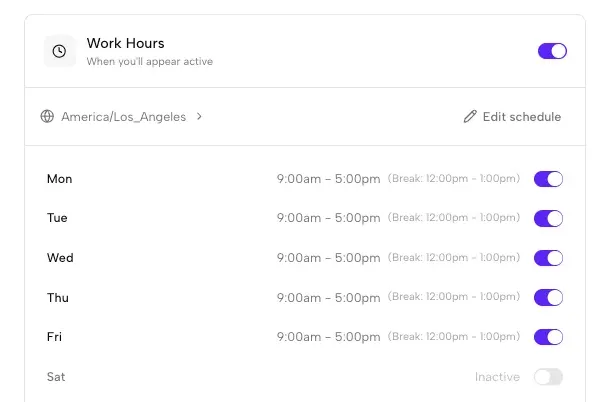
Reliable fix
Quick fixes plus a schedule-based fallback that stays consistent
Keep your status green during planned work hours.
Presence stays consistent even when your laptop is closed.
Connect with your own account. No workspace bot required.
Does not read messages. Just maintains availability signals.
Start with device and browser settings before schedule-based coverage
Increase sleep timers within policy to keep Slack connected.
Use a stable desktop or web client during work hours.
Disable settings that freeze the Slack web tab in the background.
It is measuring whether Slack still sees an active client connection and recent input.
Typing in another app, reading docs, or sitting in a call does not reset Slack's timer. Slack only sees activity inside Slack.
Screen locks, laptop sleep, App Nap, battery saver, and browser tab suspension can stop the heartbeat Slack expects.
VPN reconnects, proxy auth, WiFi changes, and mobile background suspension can drop the connection and flip you away.
Slack says desktop users are set to away after 10 minutes of inactivity. On mobile, navigating away from or closing the app can set availability to away. You can also set yourself active or away manually. Source: Slack Help Center.
The permanent fix for Slack auto-away takes about 2 minutes:
A cloud worker keeps your presence consistent during work hours
Securely link your workspace. We simulate a browser connection, so you do not need to install any apps or bots.
Desktop Chrome and the setup extension are required
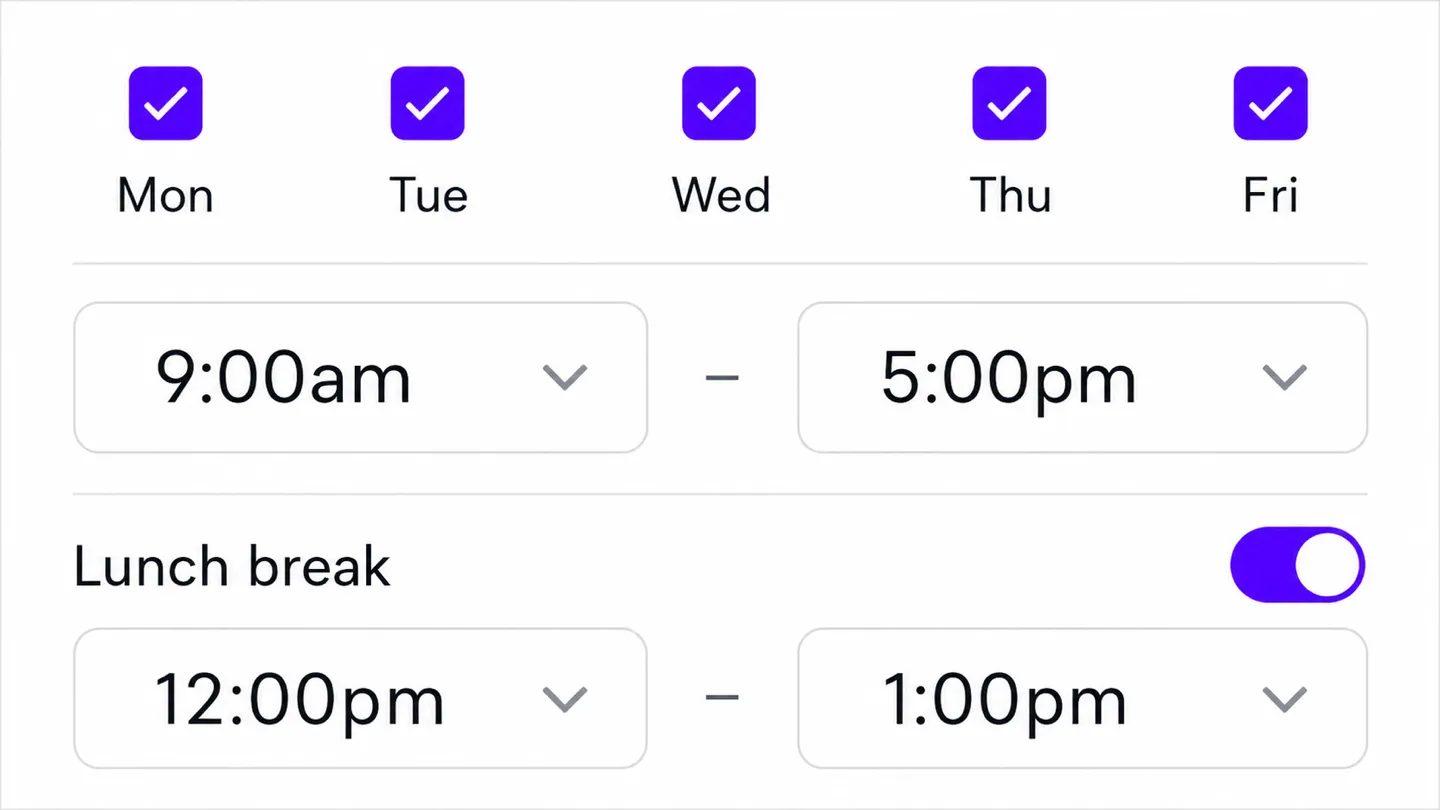
Set the days and hours you want to appear active. We handle time zones automatically.
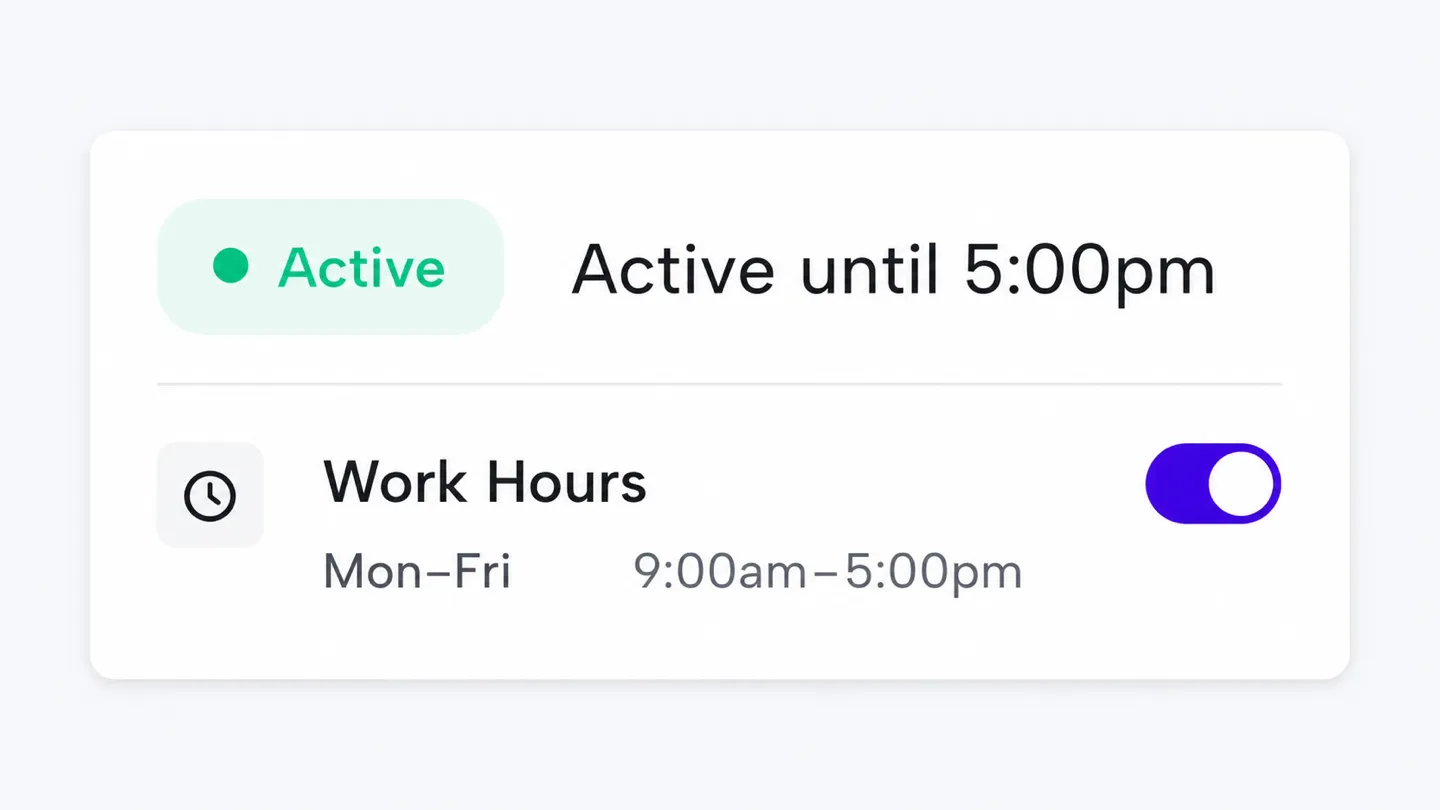
Idle Pilot keeps your status green even if your devices sleep.
Keep presence consistent during work hours.
Use the platform checklist, device-state guide, timer explanation, or complete solution guide
Check the settings that can reduce avoidable auto-away events on a powered-on device.
Read guideSee why a local workaround cannot cover every laptop state.
Read guideSeparate Slack availability from custom status and notification settings.
Read guideUse the broad solution guide when the goal is consistent availability during chosen hours.
Read guideEach OS has its own quirks. Tune these settings before reaching for a workaround.
Quick answers before you connect
Slack documents a 10-minute desktop inactivity rule. Device sleep, screen locks, VPN drops, and background tab suspension can also interrupt the client connection. Start by fixing avoidable device triggers; use an off-device schedule when presence must continue independently of the laptop.
Your organization may control sleep settings, browser extensions, or account connections. Idle Pilot requires a desktop Chrome setup extension and your own Slack account. Check your workplace policies before you link it.
Slack does not offer an official setting to disable auto-away. You can reduce the triggers by preventing device sleep and keeping the Slack client active, but the only reliable way to eliminate auto-away is to schedule presence from the cloud so there is always an active session during your work hours.
If your laptop sleeps or locks often, local fixes will always have gaps. A cloud-based approach runs independently of your device, keeping your Slack status active during your chosen hours even if the laptop is completely off or disconnected from WiFi.
Yes. The schedule runs from cloud servers and maintains your Slack session during planned work hours. It does not depend on local device state, so it works consistently regardless of sleep settings, VPN changes, or browser tab management.
Last updated: July 2026
7-day free trial · No credit card