
How Idle Pilot Works
Idle Pilot keeps Slack or Microsoft Teams availability aligned with your configured Work Hours from the cloud—even when your laptop is off.
7-day free trial · No credit card
What Idle Pilot Does
Schedule-Based Presence
Your selected platform follows your work hours, not your device activity.
Cloud-Powered
Runs from our servers. Works even when your laptop is closed or offline.
Presence Only
Idle Pilot follows the Work Hours, Lunch Break, timezone, and Vacation Mode settings you configure.
1. Connect Slack or Microsoft Teams
Choose the platform you use and connect your account once from a desktop browser.
Chrome Extension
Link your account in desktop Chrome with the Idle Pilot setup extension. You can remove it after linking.
- Guided connection
- One-time desktop setup
- Extension can be removed after setup
Use another browser after linking
Start in desktop Chrome. After linking, open your dashboard in Firefox, Safari, Edge, or on your phone to manage your schedule.
- Desktop Chrome for the first link
- Remove the extension after linking
- Manage your schedule from any browser
Your Idle Pilot Dashboard
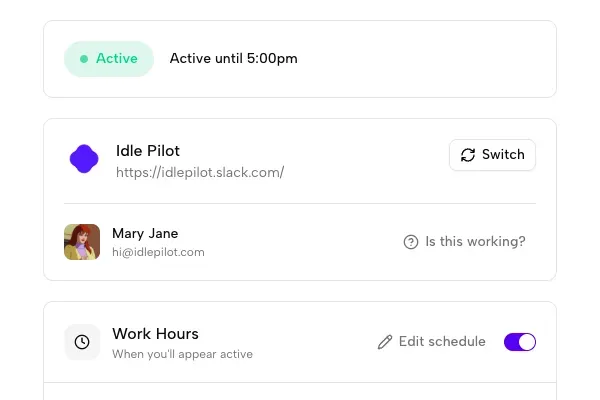
See your current status, workspace info, and controls at a glance
What you will see
- Current Status Indicator
Green dot shows you are active, with "Active until X:XX" showing when your schedule ends.
- Workspace Info
See which supported platform is connected and your profile name.
- Quick Controls
Toggle Idle Pilot on/off instantly. Access schedule settings with one click.
2. Set your Work Hours
Choose the days and hours you want to appear available. Add different hours, lunch breaks, or Vacation Mode.
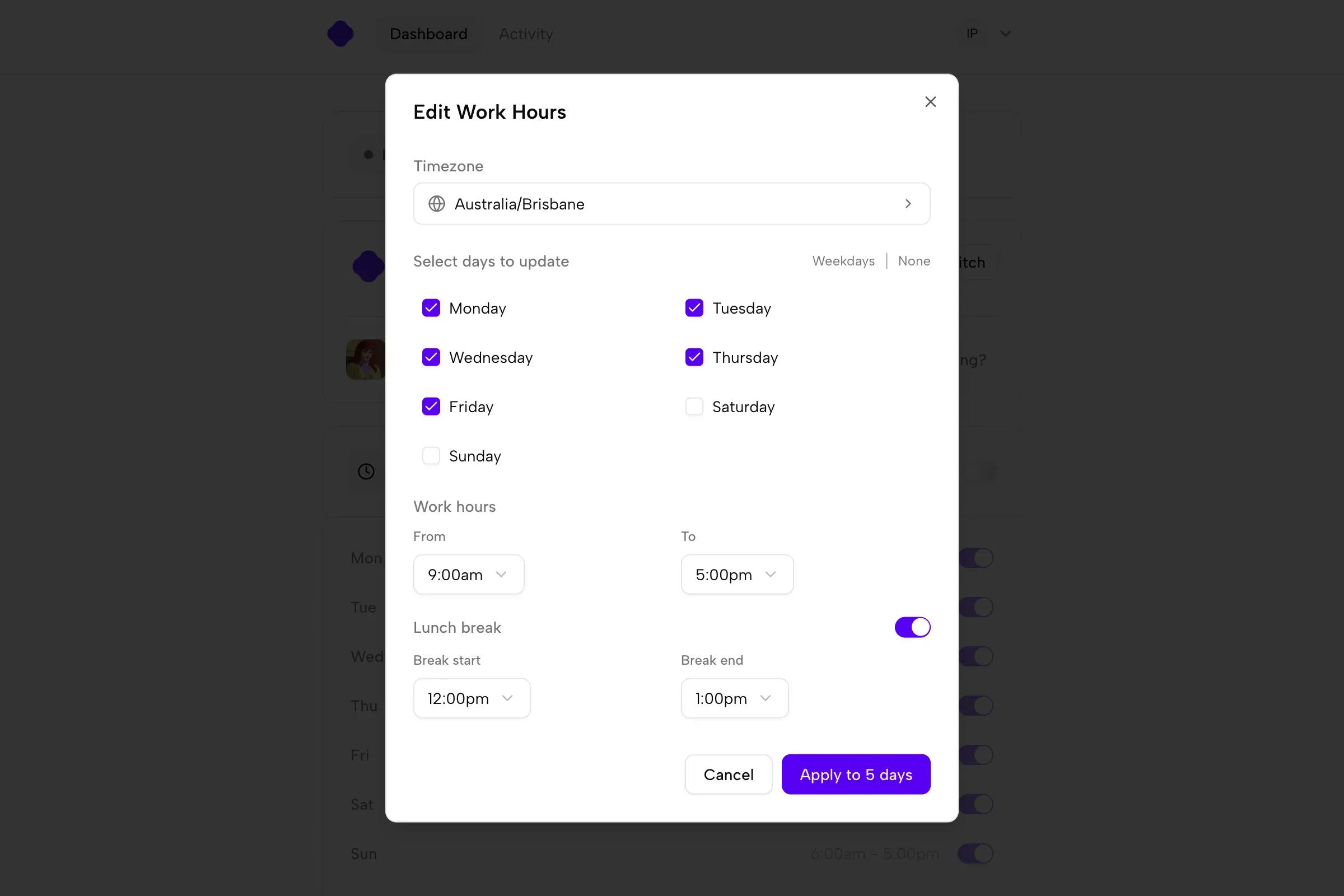
Schedule Settings
- Set Your Timezone
Auto-detected from your browser, but you can change it manually.
- Per-Day Configuration
Each day has its own on/off toggle with custom start and end times.
- Lunch Breaks
Add an optional lunch break for any day. Your status goes away during the break.
- Save and Apply
Changes apply immediately. No restart or reconnection needed.
Vacation Mode
Automatically pause your schedule when you are out of office
How Vacation Mode Works
Selected-status detection for hands-free pausing
- 1Enable Vacation Mode
Turn on the feature in your Idle Pilot settings.
- 2Select trigger statuses
Choose which statuses on your connected platform should pause your presence.
- 3Automatic pausing
When a matching event is active, Idle Pilot pauses. When it ends, your schedule resumes.
Activity History
Review your presence patterns with a visual timeline
Reading Your Timeline
Understand your presence at a glance
- Active
Periods when your connected platform was kept available by Idle Pilot.
- Break
Scheduled pauses during your work hours.
- Paused
Periods when Idle Pilot was manually paused or auto-paused by Vacation Mode.
- Away
Periods outside your scheduled work hours.
Setup & Onboarding FAQ
Common questions about getting started with Idle Pilot
How long does setup take?
Setup starts by connecting the Slack or Microsoft Teams account you use, then choosing your Work Hours and optional breaks.
Can I use Slack or Microsoft Teams?
Yes. Freedom Pass supports either platform with the same schedule, cloud operation, and controls.
What if I do not use Chrome?
Desktop Chrome is required to link an account. If you start in another browser or on your phone, use the app's transfer link to continue in Chrome. After linking, you can manage your schedule from your preferred browser.
Can I change my schedule after setup?
Yes. You can adjust your work hours, lunch breaks, and timezone anytime from your Idle Pilot dashboard.
What happens if I turn off Idle Pilot?
Your presence immediately returns to the connected platform's normal behavior. You can turn Idle Pilot back on anytime.
Does Idle Pilot work if my laptop is off?
Yes. Once connected, Idle Pilot runs from our cloud servers. Your laptop can be closed, offline, or completely off.
How do I know if it is working?
Your Idle Pilot dashboard shows your current status (green dot with "Active until X:XX"). You can also check your activity history.
Can I connect Slack and Microsoft Teams at the same time?
Freedom Pass uses one connected platform at a time. You can disconnect it and connect the other supported platform whenever needed.
Last updated:

— r/remotework
Your availability follows your schedule, not your keyboard.