
Slack Presence & Status Guides
Everything you need to know about keeping Slack active, managing auto-away, and automating your status
Complete Guides
In-depth guides covering every scenario where Slack presence becomes unreliable. Each guide includes platform-specific instructions, troubleshooting tips, and the cloud-based solution that works for all situations.
Keep Slack Green With a Locked Screen (Mac, Windows, Linux)
Slack goes gray within 10 minutes of locking your screen. Here's what causes it on Mac, Windows, and Linux — plus the cloud fix that keeps you green hands-off.
Keep Slack Active When Your Laptop Sleeps
Close your laptop and Slack goes gray in 5 minutes. Here's why sleep kills Slack status — and the cloud fix that keeps you active while your laptop sleeps.
Keep Slack Active in Power Saving Mode
Power saving mode affecting Slack presence? Learn how to keep Slack active with Low Power Mode on Mac, Battery Saver on Windows, and power management on Linux.
Keep Slack Active on iPhone & Android
Slack goes away on your phone within minutes because iOS/Android suspend background apps. Change these settings, or use the cloud fix that works without battery drain.
Keep Slack Active on Chromebook
Chromebook suspending Slack tabs? Learn how to keep Slack active on Chrome OS with browser-based solutions and cloud scheduling.
Keep Slack Active on Corporate Networks
Corporate VPN or Citrix VDI causing Slack presence issues? Learn how to keep Slack active in enterprise environments without violating IT policies.
Keep Slack Green on Corporate Laptops — No Admin, No Install, No Bot
Keep Slack green without admin approval, bot tokens, or installs. A browser-only solution for MDM-managed Macs and locked-down corporate laptops.
Keep Slack Active During Focus Work
Reading, reviewing, or presenting? Learn how to keep Slack active during low-input work, deep focus sessions, and presentations.
Keep Slack Active Without Internet
Working offline means Slack instantly marks you away. Learn how to maintain your active status during flights, commutes, and internet outages.
Keep Slack Active with Multiple Monitors
Multiple monitor setup causing Slack presence issues? Learn how to keep Slack active when switching between displays and why focus changes affect your status.
Keep Slack Active During Video Calls
Slack shows away during Zoom, Meet, or Teams calls? Learn how to keep Slack active during video conferences when you're focused on the call, not the chat.
Keep Slack Active on Firefox
Firefox suspending your Slack tab? Learn how to keep Slack active in Firefox with tab management settings and why cloud scheduling works better.
Keep Slack Active on Safari
Safari suspending Slack tabs on Mac? Learn how to keep Slack active in Safari with power settings and why Apple's battery optimization affects presence.
Keep Slack Active on Linux Desktop
Linux desktop causing Slack presence issues? Learn how to keep Slack active on Ubuntu, Fedora, and other Linux distributions with power and app settings.
Keep Slack Active in VM and Remote Desktop
VDI or virtual machine causing Slack presence issues? Learn how to keep Slack active in Citrix, VMware, Azure Virtual Desktop, and other remote desktop environments.
Keep Slack Active When Traveling
Traveling across time zones affects Slack presence schedules. Learn how to maintain consistent availability during business travel with timezone-aware solutions.
Keep Slack Active on Shared Computer
Using a shared workstation or kiosk? Learn how to maintain Slack presence on shared computers without staying logged in or compromising security.
Keep Slack Active on VPN
VPN dropping your Slack presence? Learn how to keep Slack active through VPN reconnections, split tunneling issues, and corporate idle timeouts.
Keep Slack Active on Slow Internet
Slow or throttled internet making Slack show away? Learn how to keep Slack active on high-latency, low-bandwidth, or mobile data connections.
Keep Slack Active Across Multiple Workspaces
Switching between Slack workspaces dropping your presence? Learn how to stay active across multiple workspaces without losing your green dot.
Keep Slack Active on a Restricted Company Laptop
Company laptop blocks apps and permissions? Learn how to keep Slack active on MDM-managed, locked-down laptops without installing unauthorized software.
Keep Slack Active During Standing Desk Breaks
Stepping away from your standing desk and Slack goes away? Learn how to keep Slack active during ergonomic breaks without sacrificing your health.
Keep Slack Active Over Remote Desktop (RDP)
Slack going away when your RDP session disconnects? Learn how to keep Slack active over Remote Desktop Protocol on Windows and Mac.
Keep Slack Active on macOS Sonoma & Sequoia
macOS Sonoma or Sequoia putting Slack to sleep? Learn how to keep Slack active with the latest Apple power management, Focus Modes, and battery optimization.
Keep Slack Active on Windows 11
Windows 11 putting Slack to sleep with Modern Standby and power policies? Learn how to keep Slack active on Windows 11 desktops and laptops.
Keep Slack Active at a Coworking Space
Coworking space WiFi dropping your Slack presence? Learn how to keep Slack active on shared networks, unreliable WiFi, and changing IPs.
Keep Slack Active as a Parent or Caregiver
Parenting and caregiving pull you from your desk unpredictably. Learn how to keep Slack active during childcare interruptions without missing work.
Comparisons
Idle Pilot vs Mouse Jiggler
Idle Pilot wins for remote workers who need reliable, schedule-based presence without hardware dependencies.
Idle Pilot vs Presence Scheduler Extensions
Idle Pilot wins for users who need presence to work when their browser is closed or laptop sleeps.
Idle Pilot vs Caffeine App for Mac
Idle Pilot wins for Slack presence; Caffeine is better for preventing system sleep during downloads or presentations.
Cloud Scheduler vs Browser Extension for Slack Presence
Cloud schedulers are more reliable; browser extensions are simpler to start but have significant limitations.
Glossary
Slack Presence
Slack presence is the indicator (green or yellow dot) next to your name showing whether you're currently active or away in Slack. It's automatically determined by Slack based on your recent activity and connection status.
Slack Auto-Away
Slack auto-away is the automatic system that switches your presence status from active (green) to away (yellow) after a period of inactivity. Slack typically triggers this after approximately 10 minutes with no interaction. When auto-away triggers, your profile shows a hollow circle (or yellow dot on some interfaces) instead of the solid green dot, signaling to teammates that you may not respond immediately.
Presence Scheduler
A presence scheduler is a tool that automatically maintains your Slack presence status (active/online) during specified time windows, typically matching your work hours. Unlike mouse jigglers or scripts, modern presence schedulers run from the cloud.
Slack Green Dot
The green dot in Slack is a presence indicator showing that a person is currently active. It appears as a solid green circle next to their profile picture and name, indicating they've recently interacted with Slack.
Mouse Jiggler
A mouse jiggler is a device or software that simulates mouse movement to prevent your computer from going idle, sleeping, or triggering screen lock. They're commonly used by remote workers to keep systems active.
Slack Idle Timeout
Slack's idle timeout is the period of inactivity after which Slack automatically changes your presence status from active to away. This typically occurs after approximately 10 minutes without keyboard, mouse, or app interaction.
Slack Active Status
Slack active status is the presence indicator (solid green dot) that appears next to your name when Slack detects recent activity. It signals to teammates that you're currently available and likely to respond.
Slack Do Not Disturb
Slack Do Not Disturb (DND) is a feature that pauses notifications without changing your presence status. When DND is active, you won't receive alerts, but teammates can still see you as active and choose to send urgent messages.
Remote Work Presence
Remote work presence refers to the digital signals that indicate your availability and engagement when working outside a traditional office. It includes status indicators in chat apps, calendar availability, and response patterns that teammates use to gauge when you're reachable.
Idle Detection
Idle detection is the process by which software monitors user input signals (keyboard, mouse, touch) to determine whether a person is actively using their device. When no input is detected for a set period, the software marks the user as idle or inactive.
Slack Workspace
A Slack workspace is an organization's dedicated Slack environment where teams communicate through channels, direct messages, and integrations. Each workspace has its own members, settings, and data, and is typically tied to a single company or project.
Slack Status Emoji
Slack status emoji are the icons that appear next to your display name when you set a custom status. Combined with a short text message, they let you communicate what you're doing or your availability beyond the basic active/away presence dot.
Employee Monitoring Software
Employee monitoring software is a category of tools that track worker activity on company devices, including screenshots, keystrokes, application usage, website visits, and time spent on tasks. It's primarily used by employers to measure productivity and ensure compliance.
Slack Huddle
A Slack huddle is a lightweight audio call that you can start directly within a Slack channel or DM. Huddles are designed for quick, informal conversations without the overhead of scheduling a meeting or switching to a separate video conferencing tool.
Slack Connect
Slack Connect is a feature that allows channels to be shared between separate Slack workspaces, enabling teams from different organizations to communicate in a shared space without needing guest accounts or switching between workspaces.
Bossware
Bossware is a colloquial term for invasive employee surveillance software that goes beyond reasonable productivity tracking to include features like screenshot capture, keystroke logging, webcam monitoring, and stealth installation on work devices.
Asynchronous Communication
Asynchronous communication is any form of communication where participants don't need to be available at the same time. Messages are sent and received on each person's own schedule, with the expectation that responses will come within hours rather than seconds.
Activity Tracking
Activity tracking in the context of remote work refers to the collection and analysis of data about how employees use their devices and applications during work hours. This includes mouse and keyboard activity, application usage, website visits, and sometimes screenshots or screen recordings.
Slack API Presence
Slack API presence refers to the set of API methods that allow applications to read and modify a user's presence status programmatically. The two primary methods are users.getPresence (to check current status) and users.setPresence (to set status to 'auto' or 'away').
Screen Time Monitoring
Screen time monitoring in the workplace refers to tools and practices that measure how long employees spend using their screens, which applications they interact with, and how 'actively' they engage with their devices during work hours.
Slack Notification Settings
Slack notification settings control when and how you receive alerts for new messages, mentions, and other activity. They operate independently from your presence status, meaning you can fine-tune what triggers a notification without affecting whether you appear active or away.
Digital Presenteeism
Digital presenteeism is the practice of staying visibly online in workplace tools like Slack, even when not actively working or when doing so is counterproductive. It's the remote work equivalent of sitting at your desk in an office to be seen, regardless of whether meaningful work is happening.
Hybrid Work
Hybrid work is an arrangement where employees split their time between working in a physical office and working remotely. The split can follow a fixed schedule (like three days in-office, two at home) or be flexible based on the employee's preference and team needs.
Slack Channels
Slack channels are organized spaces within a workspace where team members can communicate about specific topics, projects, or functions. Channels can be public (visible to all workspace members) or private (invitation-only), and they form the primary structure for how conversations are organized in Slack.
Productivity Paranoia
Productivity paranoia is a term coined by Microsoft to describe the disconnect between managers who believe their remote employees are underperforming and employees who report working as much or more than before. It reflects a trust gap that persists even when measurable output stays constant or improves.
Slack Enterprise Grid
Slack Enterprise Grid is Slack's plan for large organizations that need to manage multiple interconnected workspaces under a single umbrella. It adds centralized administration, enhanced security controls, and analytics capabilities that are not available on lower-tier plans.
Time Tracking Software
Time tracking software records how employees spend their working hours. It ranges from simple manual timers where workers log their own hours to automated systems that capture screenshots, log application usage, and track keyboard and mouse activity throughout the day.
Presence Anxiety
Presence anxiety is the stress and preoccupation remote workers feel about maintaining an active (green) status on workplace communication platforms like Slack and Microsoft Teams. It stems from the fear that going away or offline will be interpreted as not working.
Slack Admin Analytics
Slack admin analytics are the usage reports and dashboards available to workspace owners and admins. They show aggregate and, on higher plans, individual-level data about how Slack is being used, including message counts, active days, and channel activity.
Deep Work
Deep work is a term popularized by computer science professor Cal Newport referring to the ability to focus without distraction on a cognitively demanding task. It produces high-quality output and is the primary way knowledge workers create unique value.
Microsoft Teams Presence
Microsoft Teams presence is the availability indicator system that shows whether a user is available, busy, away, or offline. It combines automated signals from calendar events and device activity with manual status settings to display a colored dot next to each user's name.
Keylogger
A keylogger is software or hardware that records every keystroke a user types on their computer. In workplace contexts, keyloggers are sometimes embedded within employee monitoring suites to track productivity, detect data leaks, or enforce acceptable use policies.
Slack App Directory
The Slack App Directory is Slack's official marketplace for third-party integrations and apps. It lists thousands of applications that extend Slack's functionality, from project management tools to bots, and serves as the primary way teams discover and install integrations.
Always-On Culture
Always-on culture is a workplace norm where employees feel expected to be reachable and responsive outside of traditional working hours. It is driven by ubiquitous connectivity, global team distribution, and communication tools that make availability visible around the clock.
Slack Retention Policy
Slack retention policies determine how long messages, files, and other content are stored in a workspace before being automatically deleted. Admins can configure retention settings at the workspace level, per channel, or per conversation type to comply with regulatory requirements or reduce data liability.
Virtual Office
A virtual office is a digital platform that simulates the experience of a physical office for remote teams. These tools provide persistent spaces where team members can see each other's availability, start spontaneous conversations, and collaborate as if they were in the same building.
Focus Mode
Focus mode is a feature available on major operating systems and applications that suppresses notifications and visual distractions during set periods. Apple, Google, and Microsoft all offer system-level focus modes, and many individual apps like Slack include their own notification suppression features.
Output-Based Management
Output-based management is a leadership approach that evaluates employees based on the results they deliver rather than the hours they work or the activity signals they generate. It focuses on deliverables, milestones, and business outcomes rather than time-on-task or online presence.
Slack Workflow Builder
Slack Workflow Builder is a visual, no-code tool built into Slack that lets users create automated sequences of actions triggered by events. Workflows can collect information through forms, send messages, post in channels, and connect to external services without writing any code.
Blog Posts

Slack Presence and Team Trust: Moving Beyond the Green Dot
How teams build trust without surveillance. Why presence anxiety hurts productivity and what healthy remote teams do instead.
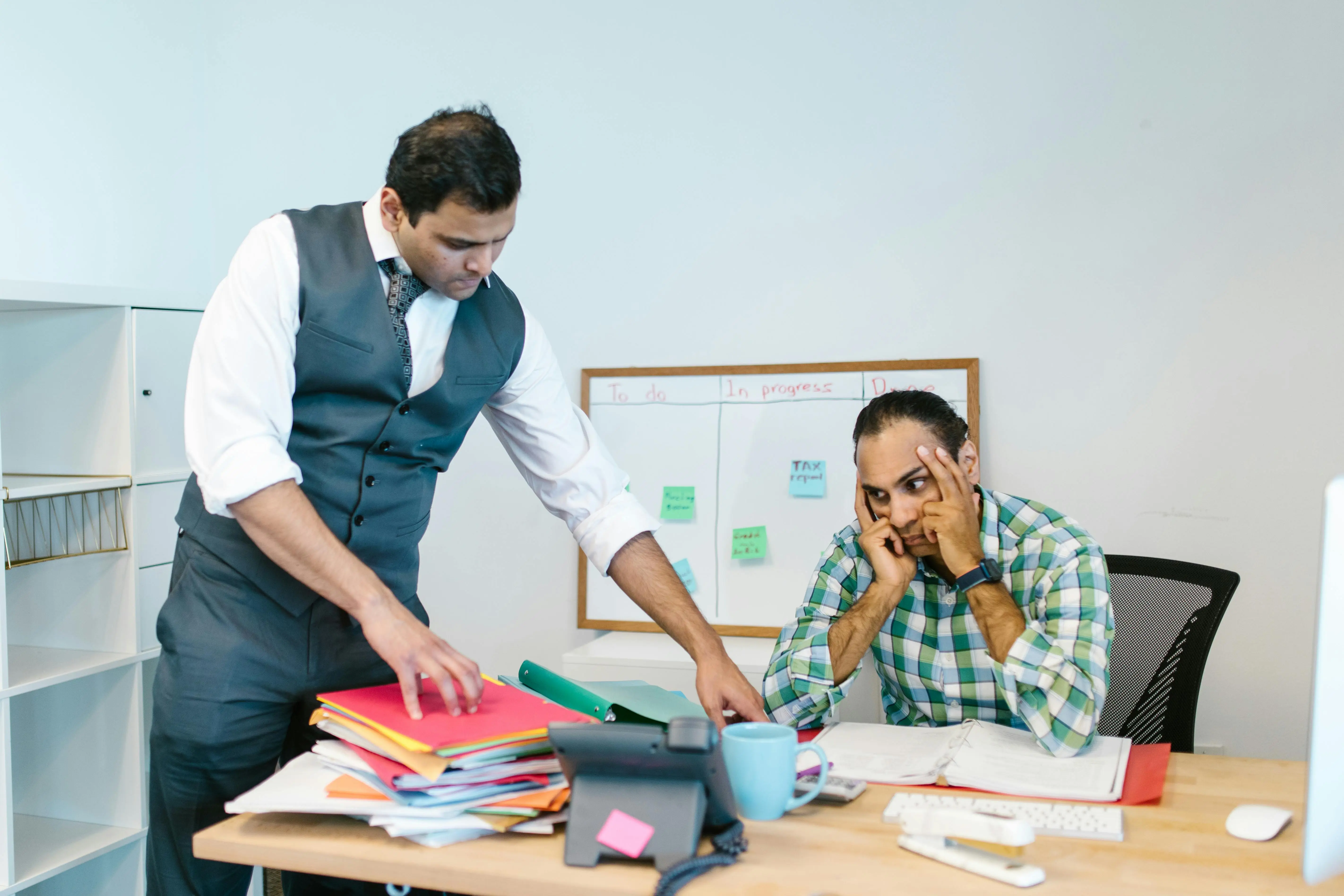
How to Talk to Your Manager About Slack Presence Tools
Considering using a presence tool but worried about perception? A practical guide to transparent conversations about Slack availability and work norms.
Why Slack Shows Away When I'm Working (And How to Fix It)
Your Slack keeps showing you as away even though you're working. Here's exactly why it happens and the reliable fixes that actually work.
Slack Presence for Customer Success Teams
Customer success teams need to appear available to clients. How to manage Slack presence in shared channels, customer workspaces, and multi-account setups.

Slack Presence for Global Teams: Managing Time Zones
How distributed teams across time zones handle Slack presence. Strategies for async communication, overlap hours, and clear availability signals.

Slack Presence for Managers: What You Can and Cannot See
What managers actually see in Slack presence, what it means, and why treating presence as a productivity metric backfires. A guide for healthy presence norms.
Main Landing Pages
Key pages for Slack presence scheduling
Ready to schedule your Slack presence?
Set up in 2 minutes. No credit card required.